


Support Database

User Manuals
View CADian Release History
If you would like to see which changes, improvements, and bug fixes are included in a specific CADian version, you can access the official Release History in the CADian Help Center.
How to Find the Release History
The Release History is available at the following link:
🔗 https://help.cadian.com/en/cadian/release_history
There you will find an overview of all released CADian versions, including their new features, improvements, and bug fixes.
When Is the Release History Useful?
The Release History helps you to:
- Track changes between different CADian versions
- Learn about new features
- Review bug fixes
- Check whether a reported issue has already been resolved
If you have any questions regarding individual entries or the described changes, our support team will be happy to assist you.
Loading a Custom Interface in CADian
CADian supports loading custom customization files (.cui), allowing the user interface to be tailored to individual requirements.
We provide a preconfigured German .cui file whose interface closely resembles AutoCAD. This file can be loaded into CADian using the MENULOAD command.
Procedure
- Enter MENULOAD in the command line and press Enter.
- In the dialog box, click Browse.
- Select the provided .cui file.
- Click Load.
- The customized interface will then be available in CADian.
You can download our ACAD LT Interface File (.cui) – German here:
Performance Optimization Settings
Performance in CADian can be optimized using various system variables. Some of the most important ones are listed below.
MULTICORE
Some CADian functions can use multiple CPU cores. This system variable controls how many CPU cores are used.
The default value is 0.
Values
-2 = Automatically selects one of the available CPUs.
If other CADian processes are already running, the CPU with the fewest CADian processes is selected. Otherwise, a random available CPU is chosen.
-1 = uses all available CPUs.
0 = uses the CPU(s) assigned when the program was started.
1 = If CADian processes are already running, CADian selects a single CPU with the fewest CADian processes from all available CPUs. If no other CADian processes are running, a random CPU from the originally assigned CPU list is used.
2 to 64 = uses the specified number of CPUs.
If the value is higher than the number of available CPUs, all CPUs are used automatically.
TEXTQLTY
Controls the display quality of TrueType text.
Values
0 = Draft Quality
Text is displayed faster but with lower visual quality.
100 = High Quality
Text is displayed smoother and cleaner but requires more processing power.
RTDISPLAY
Controls the real-time display of raster images during zoom and pan operations.
Values
0 = Images are displayed during real-time zoom/pan
→ smoother visual display, but higher graphics load
1 = Raster images are not displayed during real-time zoom/pan
→ better performance
The default value is 1.
LINESMOOTHING
Controls anti-aliasing for lines on the screen.
Values
0 = Disabled
No line smoothing. Display performance is faster, but lines appear more jagged.
1 = Enabled
Lines are displayed smoother. Visual quality improves, but more graphics performance is required.
GRAPHICSCONFIG
Opens the graphics performance and hardware acceleration settings.
This command allows adjustment of various graphics features that affect display quality and overall performance, including:
- Hardware acceleration
- Line smoothing
- High-quality geometry
- GPU usage
- Display effects
- Graphics performance options
COMMANDPREVIEW
Controls the display of a live preview during editing commands such as OFFSET, TRIM, EXTEND, FILLET, or CHAMFER.
When this system variable is enabled, CADian displays the expected result of the command before it is confirmed.
Values:
- 0 = Preview disabled (default)
- 1 = Preview enabled
Example: When using the OFFSET command, the position of the offset object is displayed before the side is selected.
ETRACKDELAY
Controls the delay time for the Object Snap Tracking (AutoTrack) feature. It determines how long the cursor must remain over an object snap point before an alignment path is displayed.
- Recommended value: 50
Values that are too low may impact performance, as Object Snap Tracking paths are calculated more quickly and more frequently.
Reset to Factory Settings
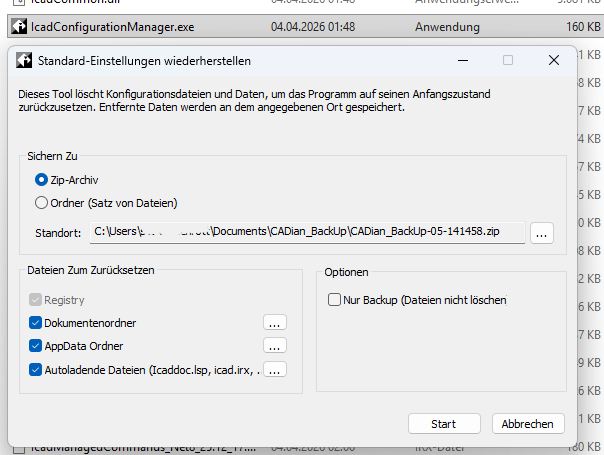
CADian provides the option to reset the program to its factory settings. This can be particularly helpful if user profiles are corrupted or unexpected program issues occur.
The file IcadConfiguratorManager.exe is located in the CADian program directory.
After launching this tool, the following functions are available:
- Creation of a backup of the complete CADian profile
(including all relevant registry entries) - Full reset of the profile to factory settings
It is recommended to always create a backup of the existing profile before performing a reset, so that individual settings can be restored if necessary.
Installation Guide – Network License
Here you can download the installation guide for CADian network licenses as a PDF.
Change Language
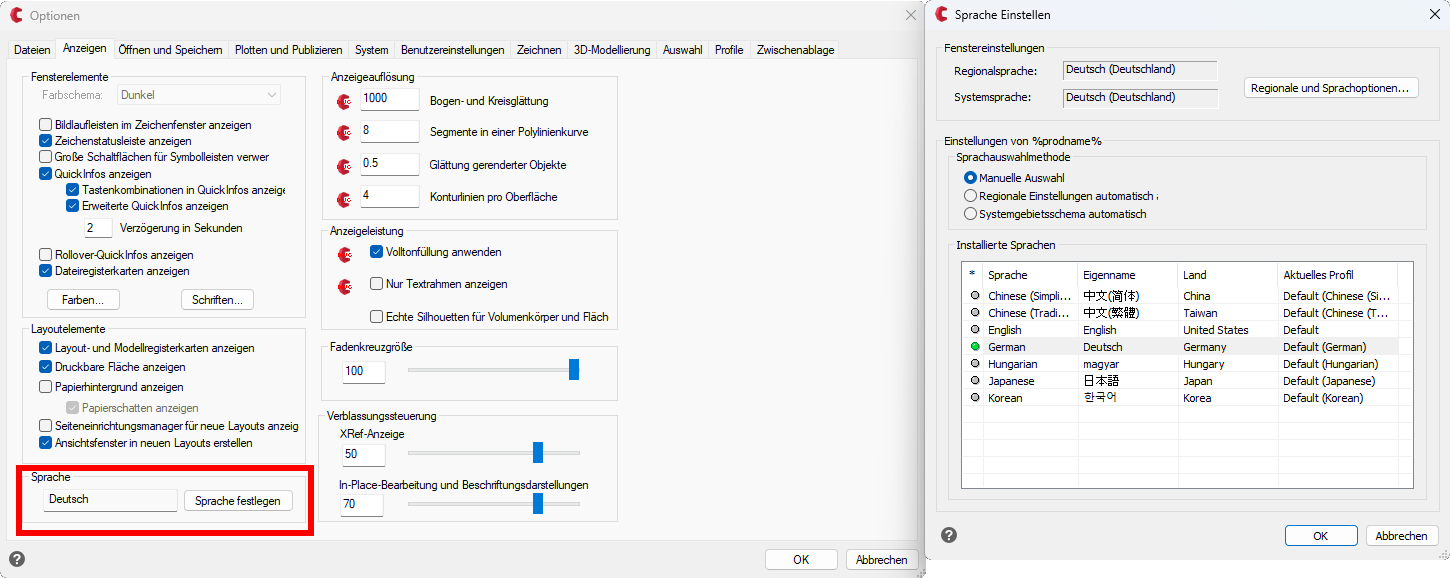
How can the language in CADian be changed?
The language can be changed in the options (command: _OPTIONS) under the Display tab. After making the change, CADian must be restarted.
All available languages are installed automatically with CADian. Therefore, the language can be switched at any time without additional downloads.
General Installation Guide
The installation guide can be downloaded here as a PDF.
Changing License Type (Demo Network / Perpetual License)
Problem:
During the installation of CADian, the licensing type is defined (network license or perpetual stand-alone license with serial number). When starting the program, either the serial number is requested or the system searches for a network server. This behavior also persists after the free demo version has expired.
How can this be changed afterward?
Solution:
Run the file CADSvp.exe located in the respective CADian 20XX program directory.
The program directory is typically found at:
C:\CADian\CADian [Program Version]\
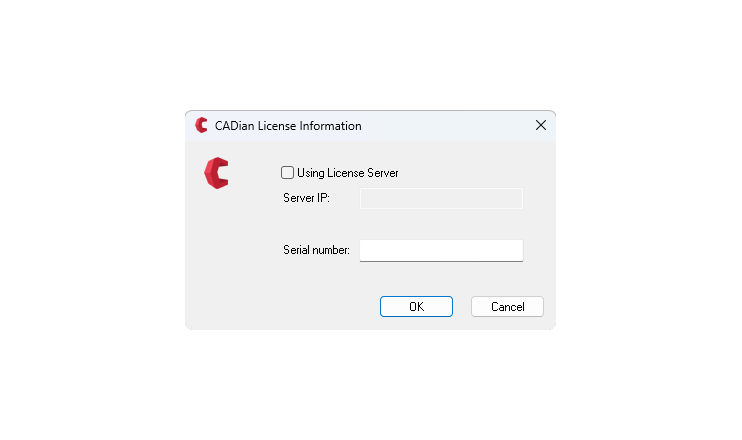
After executing the file, a window will appear where you can switch between network license and serial number.
Perpetual licenses use serial numbers, while network licenses access the license server.
Notes:
- The serial number can be entered including hyphens; the hyphens will be removed automatically.
- The server IP address is not required or is assigned automatically.
Access License Server
CADian uses the Sentinel RMS License Manager for network and subscription licensing.
Here you can manage your network licenses and annual subscriptions. You do not need your own server or network for your network licenses.